

Find and export the information you need
We know you need more than the simple text search once you get up and running with your team on Cirkus.
Now you can pinpoint the exact data that you need, and export it.
There are two types of searches in Cirkus:
- Quick search, which is on the menu bar (Mac and iOS), or top of the left menu(web)
- Advanced Search, which you reach from the Search item in the left menu.
Let’s take a look at some examples.
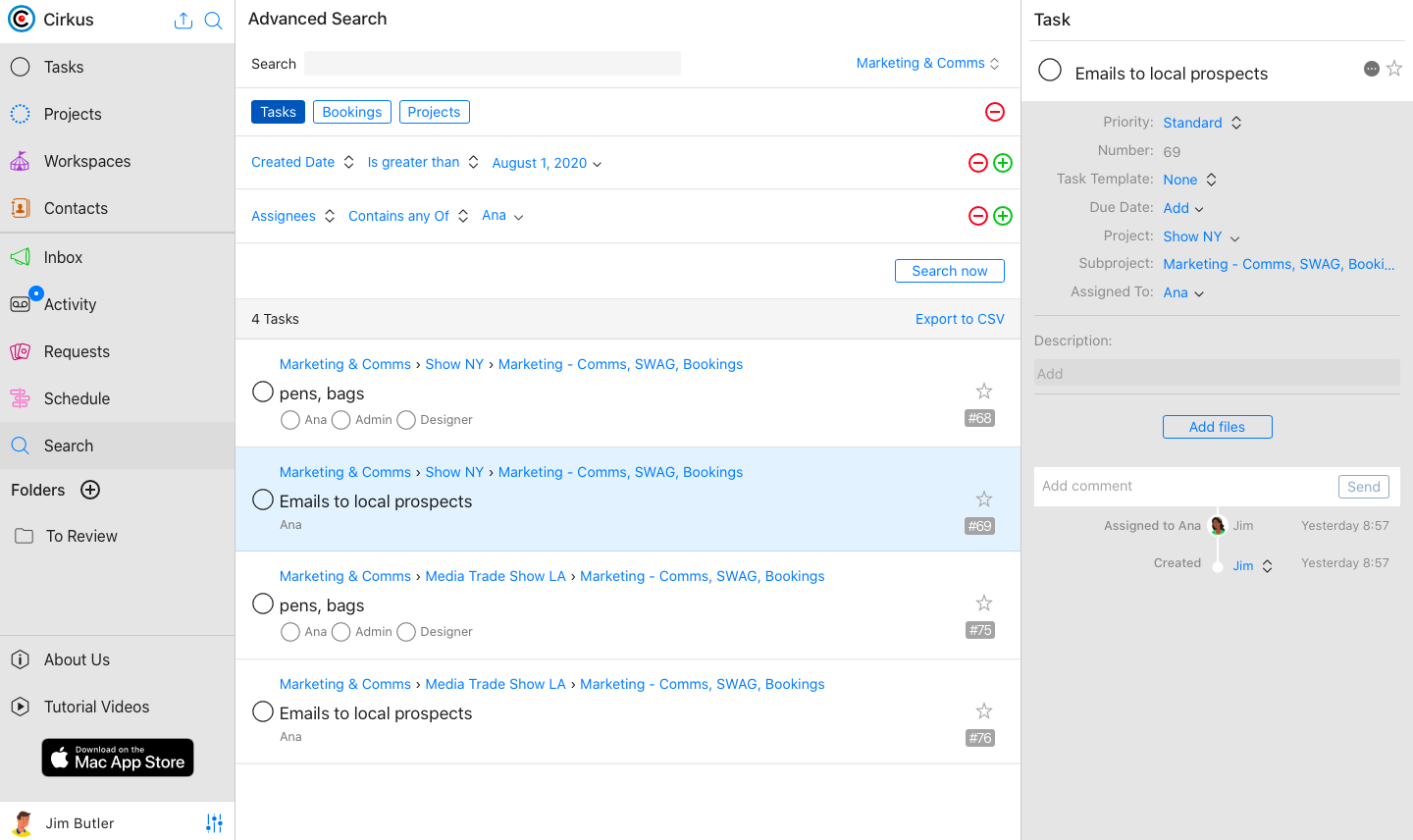
Example 1: Tasks completed by Ana in the past month
- Go to the Search in the left menu.
- Click on the Tasks Tab.
- Click on (+) to add your first search criteria
- Then select “Done Date” “between” “start of this month date” and “end of this month date”
- Click on (+) to add your next search criteria
- Select “Assignees” “Contains Any Of” , and from the member selector, chose “Ana”.
- Hit [Search Now]
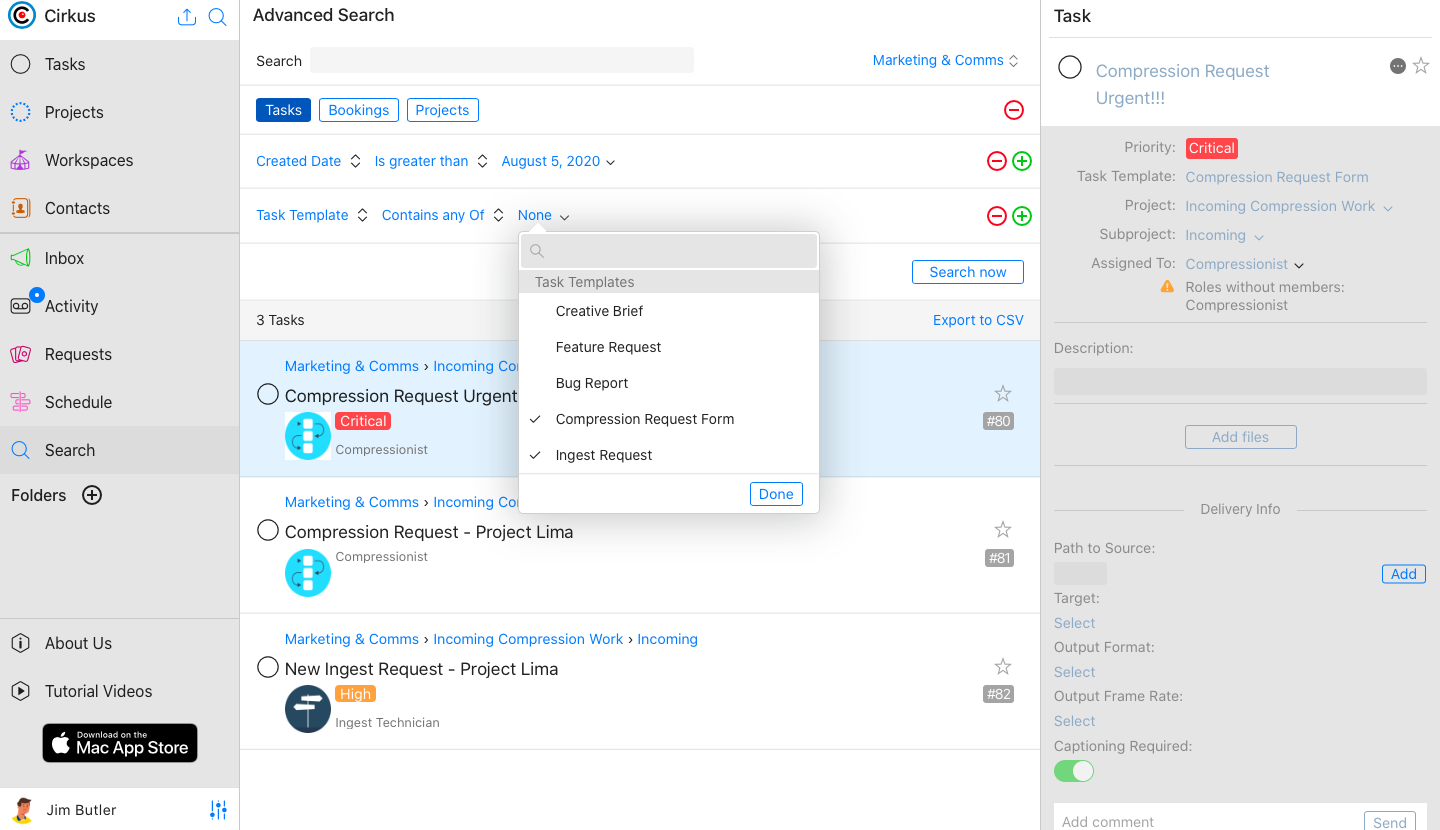
Example 2 – Requests to Technicians in the past week
- Go to the Search in the left menu.
- Click on the Tasks Tab.
- Click on (+) to add your first search criteria
- Then select “Created Date” “is greater than” “7 days ago date”
- Click on (+) to add your next search criteria
- Select “Task Template ” “Contains Any Of” , and from the Task Template selector, chose the request types.
- Hit [Search Now]
Exporting your results
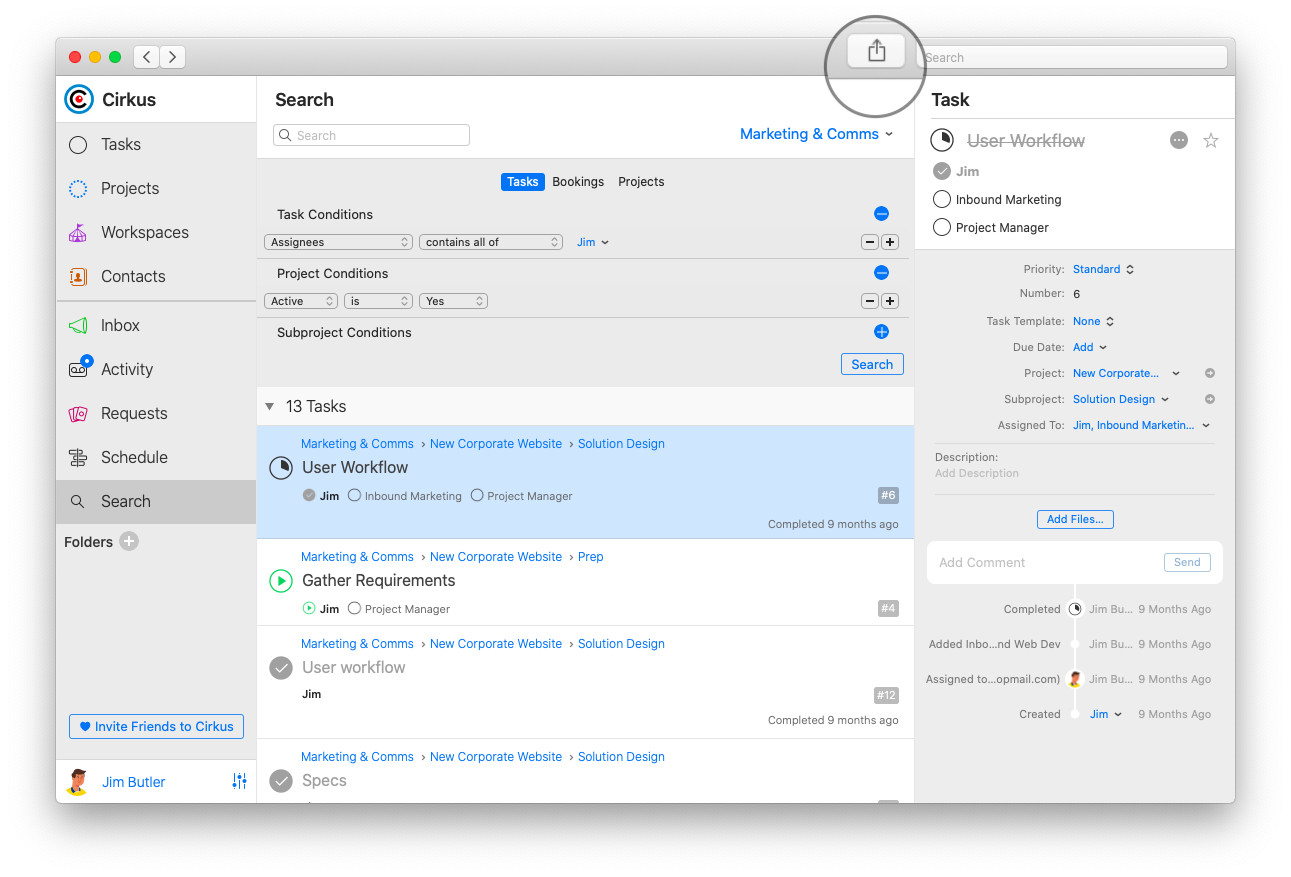
When you have your results you can save and export them as a csv file.
In the Mac app using the “Share” option in the toolbar.
In web and iOS select Export to CSV.
When exporting you will be prompted for the separator to use. If you want to use the data in Microsoft Excel you should select that option, to ensure that the data is formatted correct.
All of the data from the Tasks, Bookings and Projects are exported to your csv file.

Michelle has nearly 20 years’ experience in telecoms and media, starting at O2 Ireland and IBM before becoming COO at farmerswife. She leads the development of the farmerswife and Cirkus platforms, blending technical expertise with strong leadership skills.
