

Introduction
Using Cirkus, video production teams can capture booking and resource requests for crew, rooms, and equipment in one workflow.
For example, if you often have producers booking in your team, rooms or equipment, you can use provide a Request Form in Cirkus to gather these requests, and even pass them through an approval process.
Just like the Task Requests workflow, Booking Requests are powered by Booking Templates.
Let’s take a look
Create a Booking Template
To get started, we need to set up a Booking Template.
As Workspace Administrator, go to the Workspace>Templates>Booking Templates tab, and type the name of the new template.
We’ll call ours Studio Booking Request. Hit Enter to create the template.
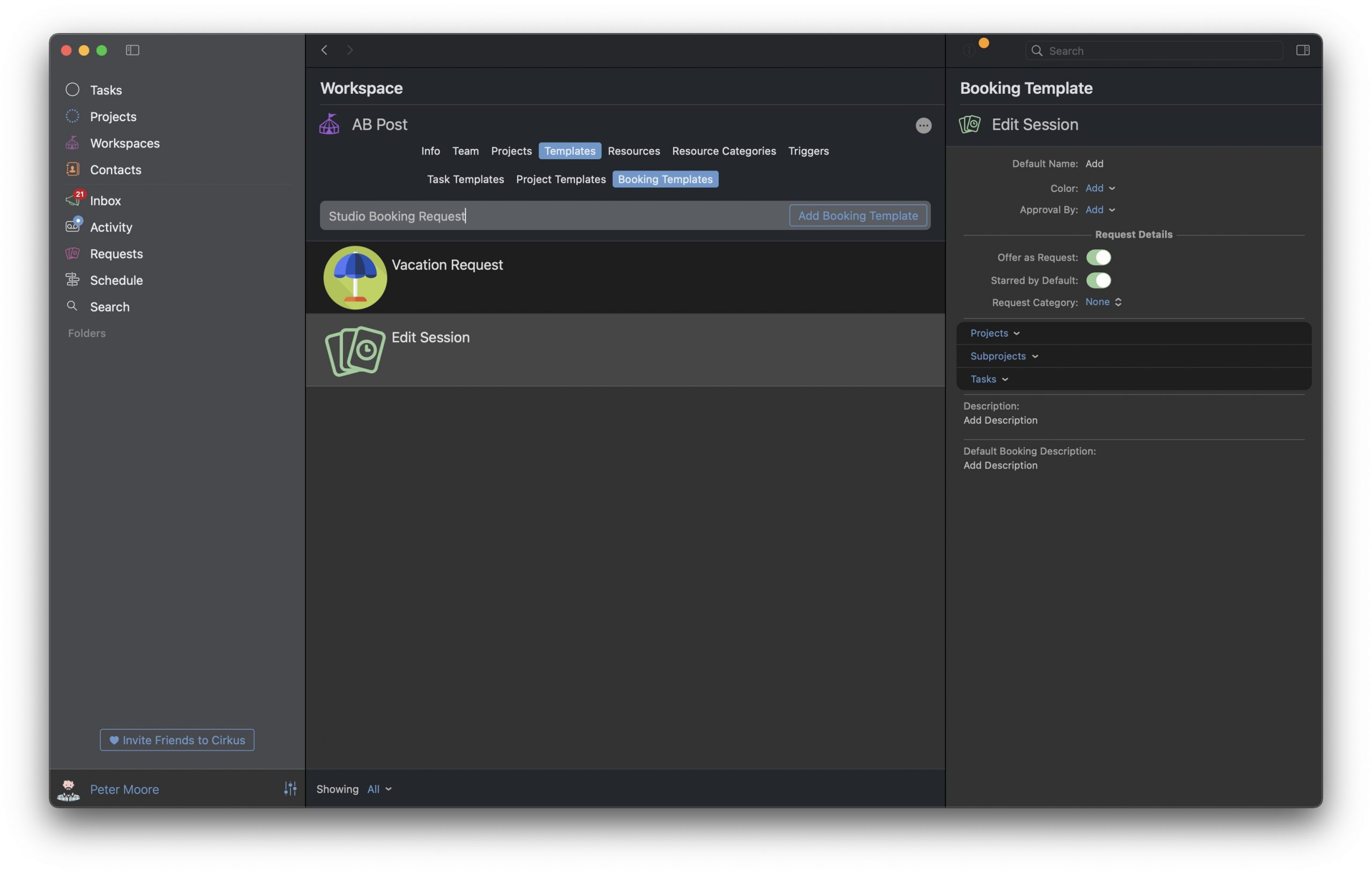
Now double click on the new template to go to the Booking Template details, and complete the setup.
- Add a thumbnail by clicking to the left of the name of the Template.
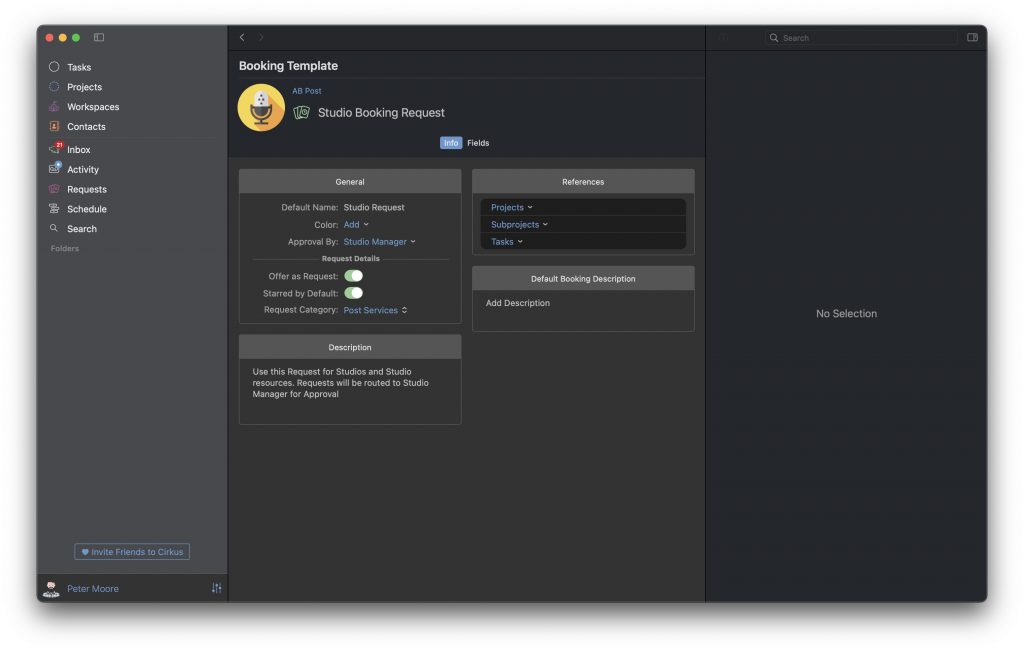
First let’s look at the Info tab
- Default Name: This is the name that any Booking created with this template will have by default. It can be edited by the requestor.
- Color: This is the color that the Booking will have in the Schedule
- Approval By: If this field is not set, the Booking will be immediately added to the Schedule.
If this field is set to a person or a role, it must be “Approved” by them before it shows in the Schedule to the rest of the team. For our template we will set this to be our “Studio Manager” role. - Offer as Request: Toggle to ON to make the template available on the Requests portal.
- Starred by Default: If there are lots of templates, you can toggle this ON so they show up first in the list.
- Request Category. This allows the admin to group requests types together, so requestors can easily find the type of request they need. Our one is in the “Post Services” category.
Request Categories are set up in the task Template tab.
Switch the view at the bottom, and create or edit existing request categories. - Description: This is the optional Description of this Template
- References: Here you can set the Projects, Subprojects and tasks which will be linked to this Booking Request.
You can also hide these fields in the Fields tab. - Default Booking Description: This is the default description that will be added to any Booking created with this template.
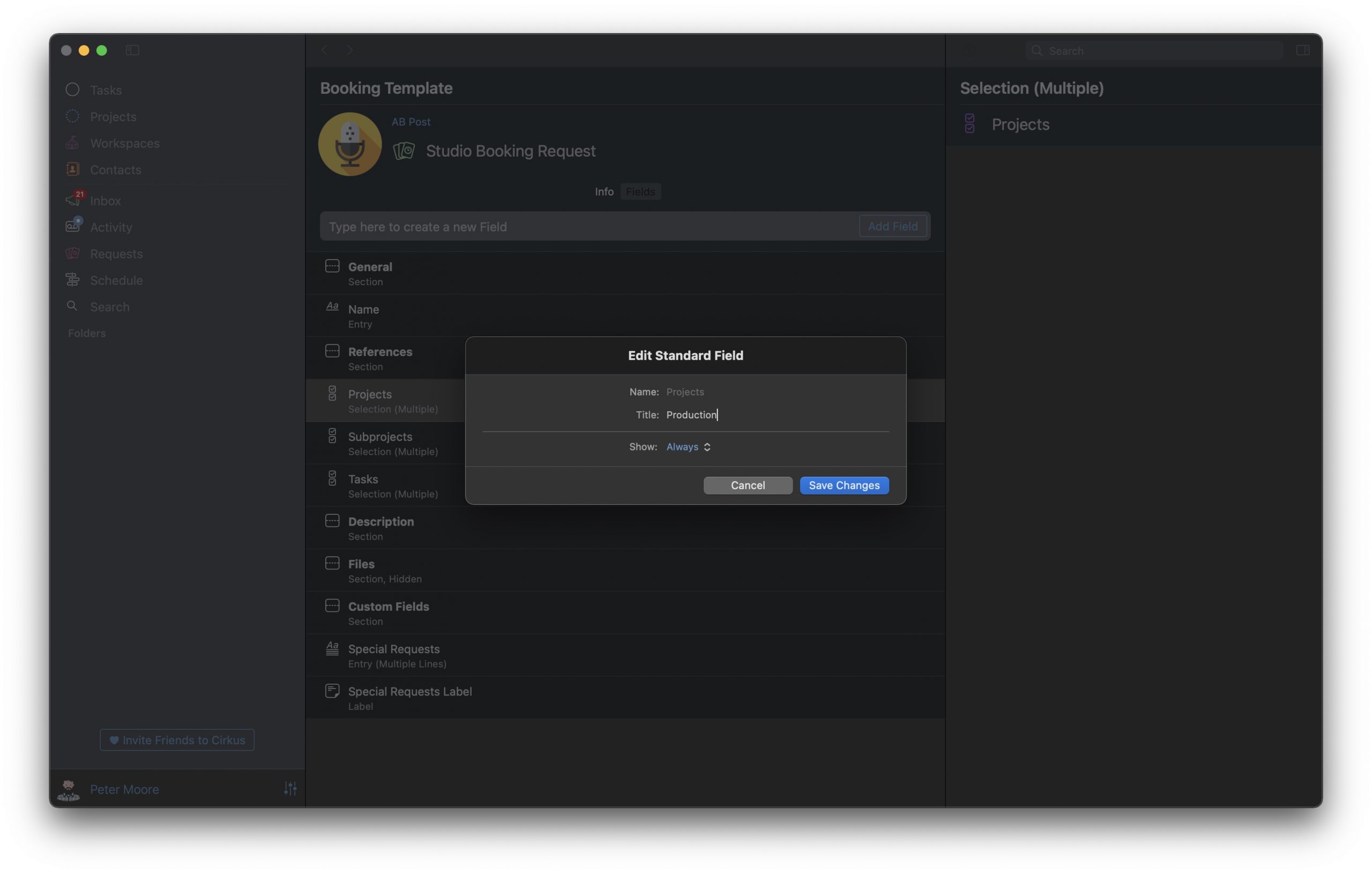
Next let’s look at the Fields tab.
Our template can be set up with some custom fields to collect the information needed from the requestor.
Details of the field options are available in the Task Template video.
We can also show and hide some standard fields to customise the request form.
In our example for the Studio Request we will make these changes:
- Add a new custom field of type “Entry” to collect “Special Requests”, and a Label field to inform what that field is for.
- We will hide the Files and Description fields as they are not needed in our Bookings of this type, by setting them to “Show Never”
- Rename fields – we will rename the Projects field to be “Productions”
Now we can take a look at our Booking Requests will look for our requestors and share the URL for direct access.
Join for free today

- Collaborate from every device
- Automate tasks and workflows
- See all projects at a glance
- Make quotes in minutes
Submit a Booking Request
Anyone submitting a booking request must be a member of our Cirkus Workspace, and they can use the Requests view on web, iOS or Mac app, or a direct web link to access the request form.
We will look at how it appears on the web browser below.
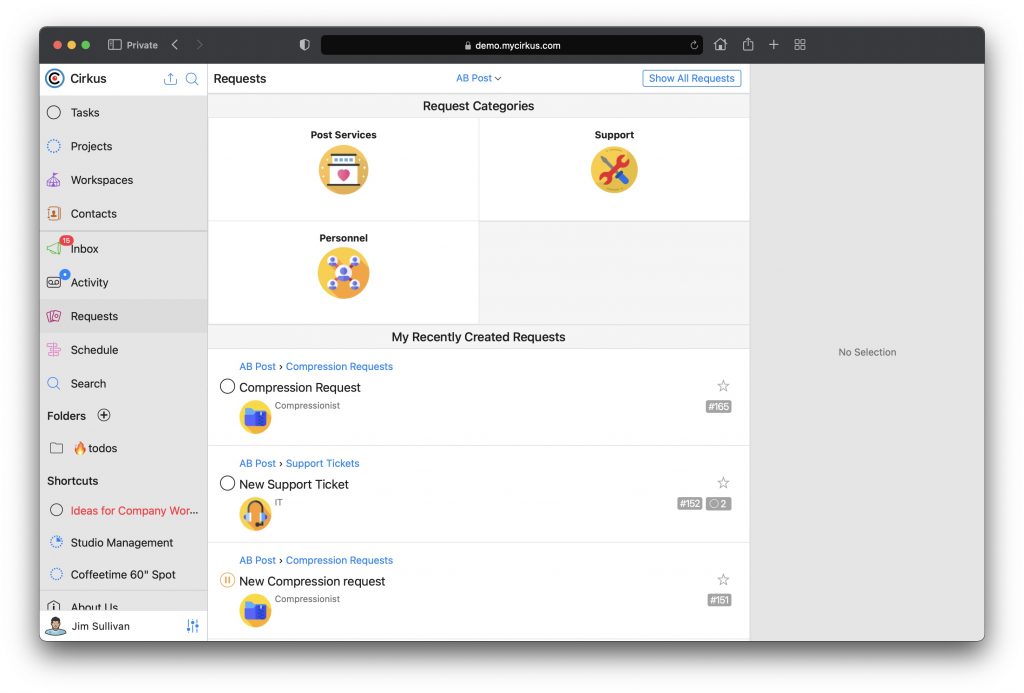
As a Requestor, go to the Requests view or click on the shared request link (this can be copied from the template on web or mac apps).
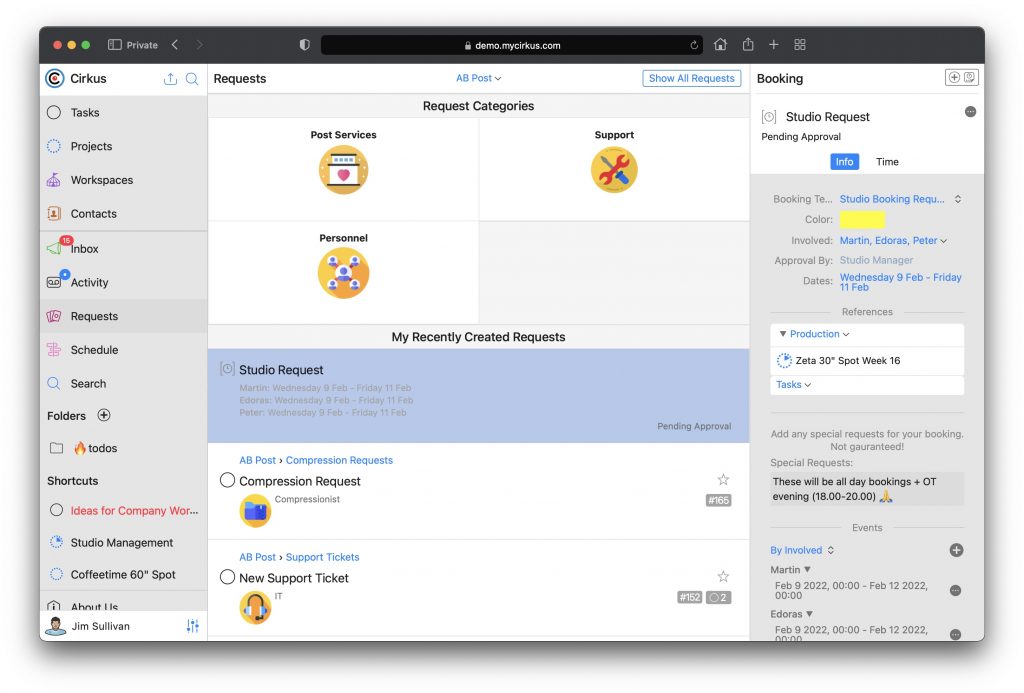
Our Studio Request is under the Post Services Category.
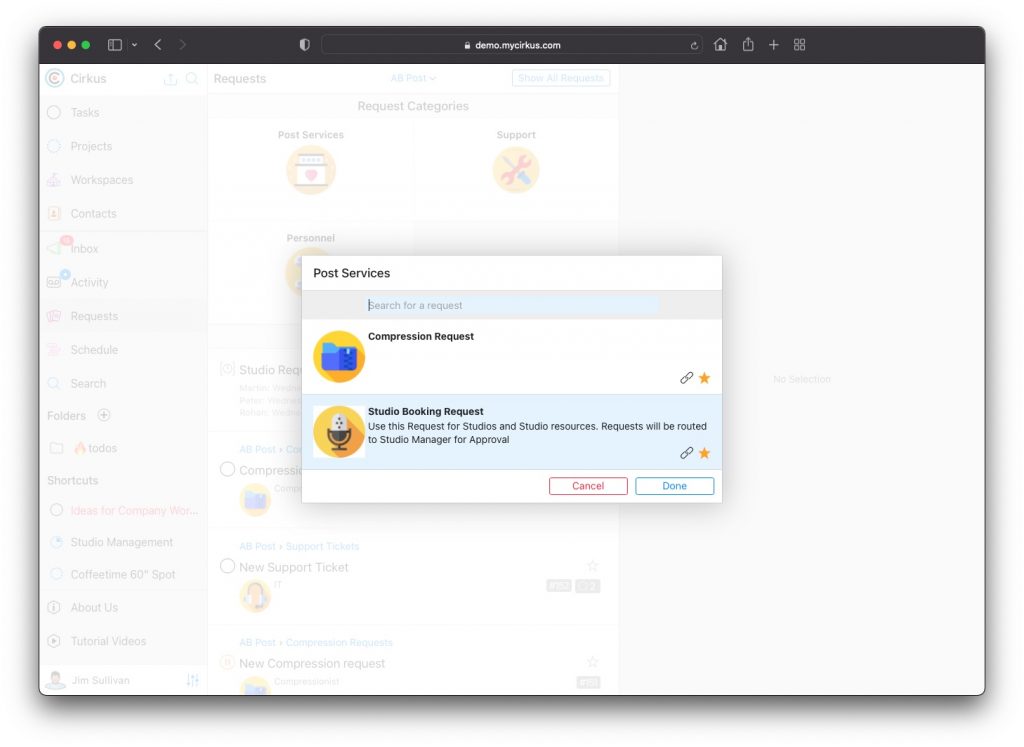
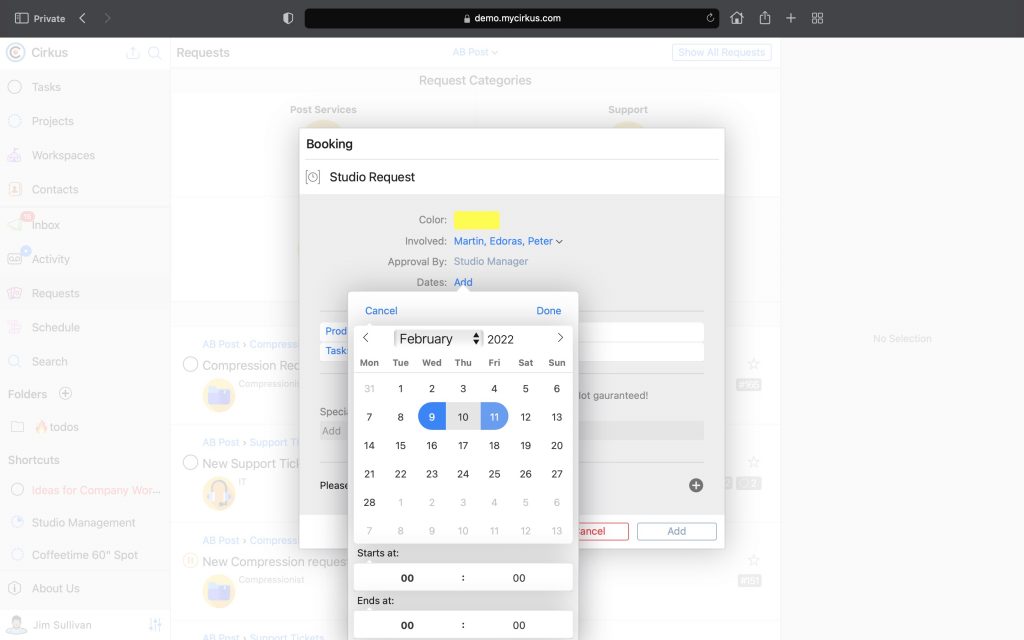
Complete the Information in the New Booking Sheet, most importantly the resources involved and the date range.
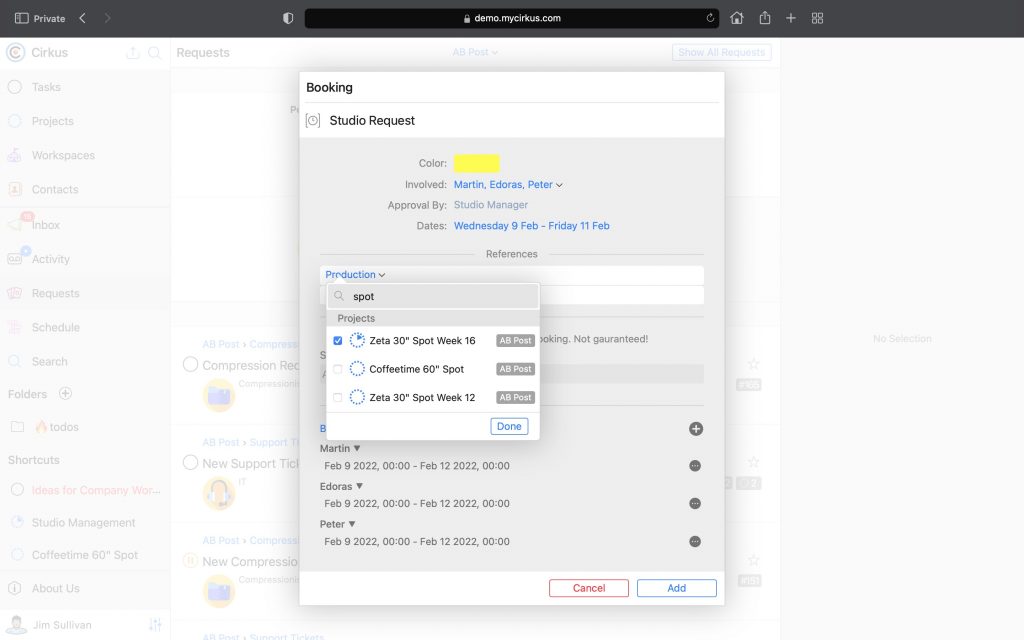
We can also link our booking to a specific Project, by selecting the Production from the drop down selector
If all resources have the same time range, add that in the Dates field. If you require advanced options, for example split bookings or different time ranges for different resources, this can be added in the Events section by editing each resource.
When the Request is submitted it will show in the “My Recently Created Requests” section, with a status indicating it is Pending Approval.
At this point the booking is only visible on the schedule of the requestor and the approver, and must be approved to show on the team Schedule.
Booking Request Approval
When a Booking (or Task) is submitted which requires approval (as per the template set up), a notification is sent by email, push notification and to the Inbox of all the approvers.
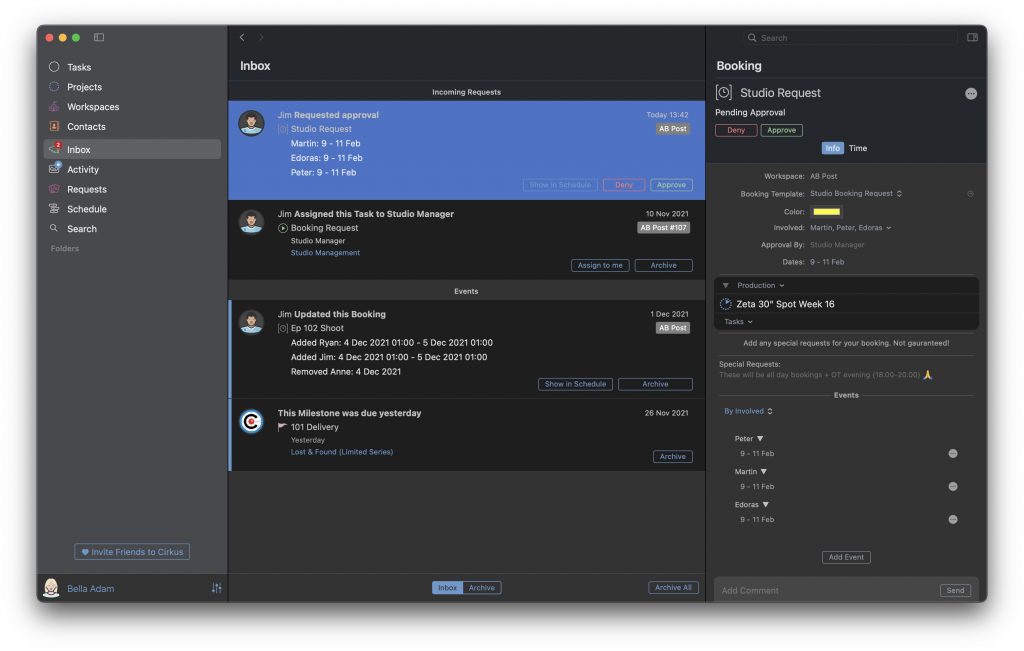
The Approvers can review the request and either Approve or Deny it.
From the Inbox event they can also jump to the Schedule to see the Request.
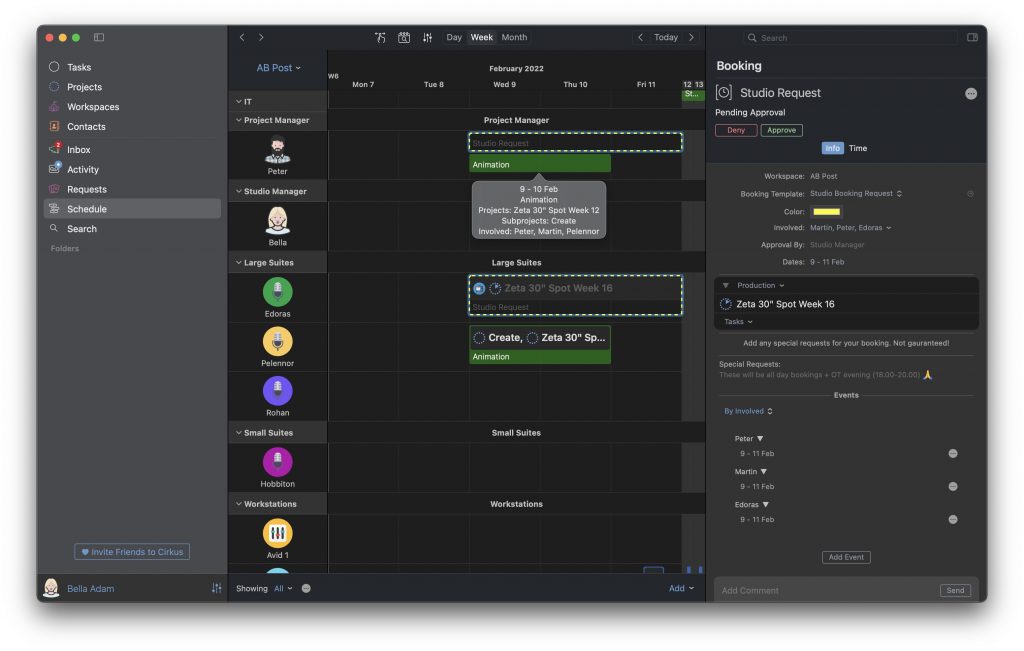
- Requests Pending Approval show with dotted outline, and are only visible to Requestors and Approvers
- If a Request is Approved it then shows to all the team
- If a Request is Denied, it no longer shows in the Schedule
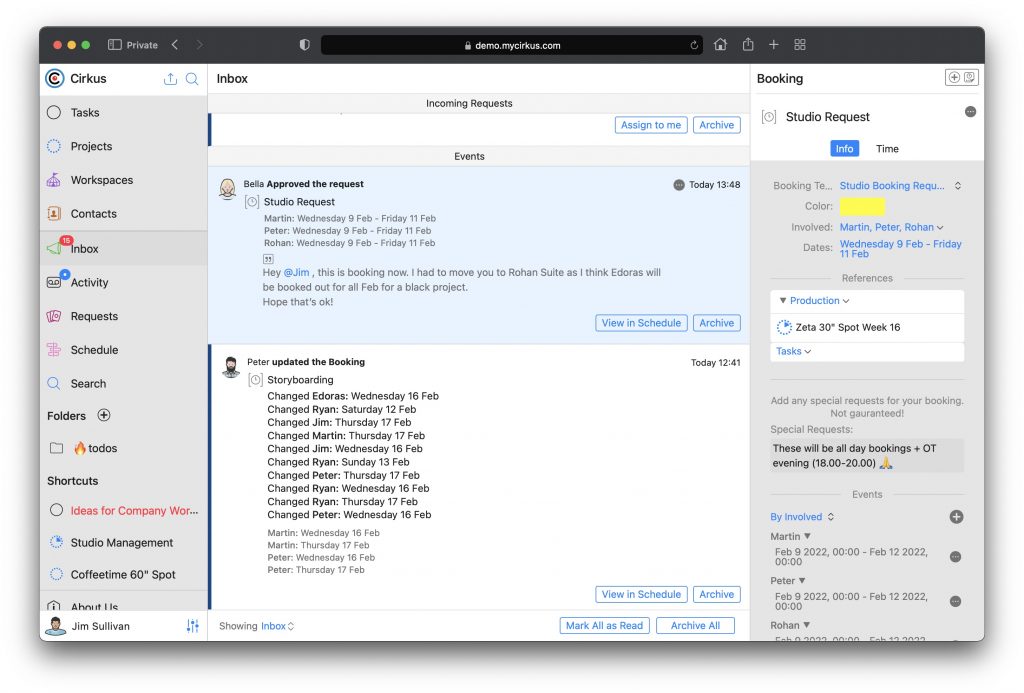
Approvers can also modify the Request before approving it, for example assigning our booking to a different resource if the requested one is unavailable. When the Approval process is complete, the requestor is notified.
Booking Requests and farmerswife
If you have your Cirkus projects integrated with farmerswife, you can use Booking Requests to submit requests which will be booked to the farmerswife Hourline if they are Approved.
For more information on these options, contact support@farmerswife.com where we can discuss the workflow options in detail!